
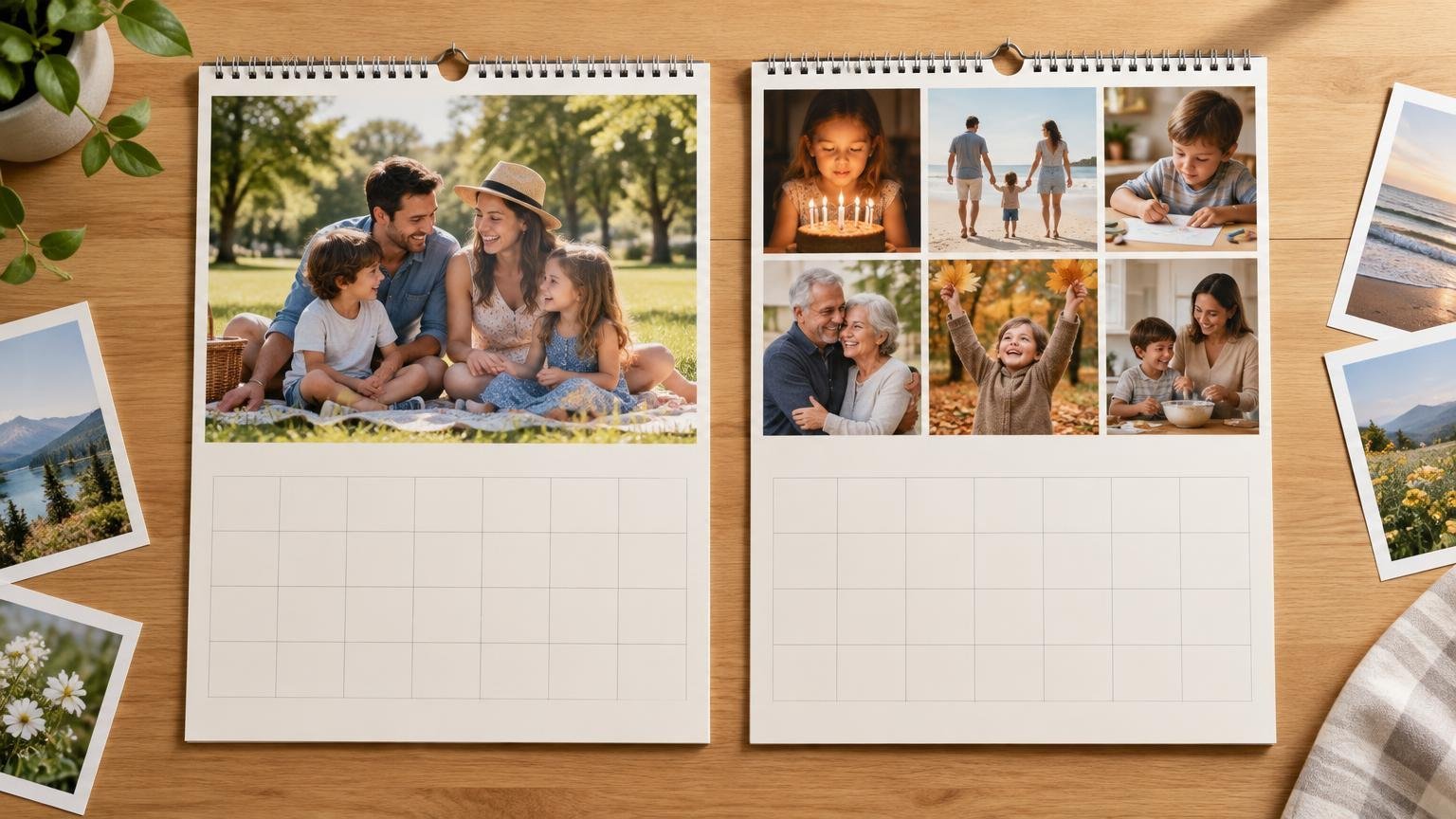
For most families, one large photo per month is the best calendar layout. It gives the picture room to breathe, keeps faces recognizable from across the room, and makes the project much easier to finish. A monthly collage is better when each month has a story that genuinely needs several images, such as a vacation, graduation, new baby, or family reunion.
The strongest compromise is a mostly single-photo calendar with two to four carefully chosen collage months. That gives you visual consistency without pretending that the month containing the wedding, beach trip, and toddler-versus-birthday-cake incident can be summarized by one polite portrait.
Single photo vs collage at a glance
| Decision factor | One large photo | Monthly collage |
|---|---|---|
| Best use | A clean family calendar with one memorable image per month | A year-in-review calendar with several moments per month |
| Image selection | About 13 primary images including the cover | Several dozen images across the project |
| Viewing distance | Faces and details remain easier to see | Small frames may be difficult to read from across a room |
| Phone-photo flexibility | Needs a strong image that can tolerate enlargement | Can place weaker or lower-resolution images in smaller frames |
| Design workload | Faster to build and easier to update annually | More cropping, rearranging, and quality checking |
| Gift appeal | Polished, calm, and broadly suitable | Personal and story-rich, especially for close relatives |
| Main risk | A weak photo dominates the entire page | The design becomes busy and repetitive |
Why one big photo is the best default
A wall calendar has two jobs: display a photograph and function as a calendar. The single-photo layout handles that split cleanly. The upper page becomes the visual feature, while the lower grid remains available for appointments, birthdays, school closures, and whatever mysterious obligation someone wrote down as simply “bring thing.”
It also creates a manageable editing target. A basic 12-month calendar with a cover needs 13 main images, as illustrated by Snapfish’s one-photo-per-month workflow. Its editor also supports multi-photo pages and layout shuffling, so choosing a simple baseline does not eliminate the option of adding a collage later.
Choose the single-image approach when the calendar will hang in a kitchen, hallway, office, or another place where people view it from several feet away. Larger faces, cleaner compositions, and fewer tiny details usually produce a calendar that feels intentional rather than assembled from every image surviving in the camera roll.
When a monthly collage earns its space
A collage works when the relationship among the pictures matters. Three images showing a child’s first day of school, performance, and final-day grin tell a small story. Four vacation photographs can show people, place, and activity more completely than a single group shot.
Some editors provide plenty of capacity. Shutterfly says users can filter calendar layouts by photo count and place as many as 25 photos on a calendar page. It also allows repositioning, cropping, rotation, full-page photo backgrounds, and pictures on individual dates. Capacity is not the same as good judgment, though. Twenty-five available spaces do not create an obligation to fill all twenty-five.
Let photo quality influence the layout
A large monthly image needs enough usable detail for its printed size. Cropping a distant subject, enlarging a screenshot, or using a compressed image downloaded from a message thread can expose softness that looked harmless on a phone.
The Google Photos guidance on print resolution explains that a low-resolution warning means an image may look blurry in print. Mixbook similarly identifies low resolution and excessive enlargement as reasons an image may print blurry or pixelated, and recommends using original files instead of compressed social-media or email copies.
This gives collages one practical advantage: a marginal image can be placed in a smaller frame rather than enlarged across the page. That may be more forgiving, but it is not a quality guarantee. Watch the editor’s resolution warnings, inspect every crop, and replace any image that still looks questionable. Use the original phone file whenever possible.
Protect the date grid from the photos
The calendar grid should remain useful after the novelty of the photographs wears off. Decorative backgrounds, pale numerals, tiny event labels, and date-cell photos can all reduce readability. The W3C guidance on text contrast uses a 4.5:1 benchmark for ordinary text and 3:1 for large text. Those are web accessibility standards rather than print-calendar rules, but the underlying lesson applies: small text needs strong contrast against its background.
Choose dark date numerals on a light, quiet grid or light numerals on a consistently dark background. Avoid placing essential event text over patterned artwork. If the family writes appointments by hand, prioritize generous blank cells and consider a writable finish; our comparison of matte and glossy photo calendars explains why paper style matters for everyday use.
Date-cell customization also consumes space quickly. Shutterfly supports event text and individual-date photos, while Snapfish limits a selected date cell to one photo and one line of text. Reserve date photos for genuinely useful markers—perhaps a birthday portrait or anniversary image—rather than turning every square into a miniature scrapbook.
Match the layout to the recipient
For a household calendar, usability should win. Pick one large monthly image, preserve writing room, and add only the milestones people need to see. For grandparents or relatives who mainly want the photographs, a restrained collage can carry more family news without requiring a separate album. The guide to making a custom photo calendar gift for grandparents covers the broader gift-building process.
A calendar also has less room for storytelling than a photo book. If you have hundreds of important pictures, the problem may be the format rather than the template. Our photo calendar versus photo book comparison helps separate a practical year-round gift from a fuller family archive.
Plan for next year before finishing this year
A repeatable annual workflow can save more time than an elaborate template. Create a folder with 13 strong anchor images, then add small groups for months that deserve collages. Name files by month and keep a separate list of birthdays, anniversaries, and recurring events.
Do not assume every editor will carry those details into a new year. Shutterfly says saved projects can be edited, copied, and ordered again. Snapfish can import saved date-level text and photos into a new wall calendar, although that feature is unavailable for desk calendars. Mixbook says that changing a copied calendar to another starting month or year does not transfer events, stickers, photos, or text placed inside the grid.
Template changes can also disturb finished work. Shutterfly warns that switching calendar styles may change layouts, crops, text wrapping, photo resolution, and price. Choose the format and style first, build two sample months, and only then commit to the remaining ten.
The final choice
Choose one big photo per month if you want the safest, clearest, and fastest family-calendar layout. It is especially suitable for wall calendars, mixed-age recipients, and annual gifts you expect to recreate.
Choose a collage when several images are necessary to explain the month or when smaller frames help you use phone photos that should not be enlarged. Keep most collages to two to four pictures, establish one dominant image, and protect the date grid from decorative clutter. For the best balance, use large photos as the calendar’s rhythm and collages as occasional emphasis. A highlight works because not every month is shouting.
References
- What does the warning symbol mean? – Mixbook Help Center
- Edit a photo book – Android phone & tablet – Google Photos Help
- Personalizing a Wall Calendar
- Create a calendar – Snapfish Help
- Understanding Success Criterion 1.4.3: Contrast (Minimum) | WAI | W3C
- Add photos to calendar dates – Snapfish Help
- Managing Projects
- How do I change my calendar to a different starting month or year? – Mixbook Help Center
- Import text or photos for specific calendar dates – Snapfish Help